ZATCA Phase 2 E-Invoicing Integration
Complete documentation for ZATCA (Zakat, Tax and Customs Authority) Phase 2 e-invoicing integration. This integration enables businesses in Saudi Arabia to automatically generate, sign, and submit compliant electronic invoices to ZATCA's Fatoorah platform.
Overview
The ZATCA Phase 2 e-invoicing integration enables businesses in Saudi Arabia to automatically generate, sign, and submit compliant electronic invoices to ZATCA's Fatoorah platform. This integration ensures full compliance with Saudi Arabia's e-invoicing regulations.
Key Features
- Automatic Invoice Submission: Invoices are automatically submitted to ZATCA when created and submitted
- XML Generation: Automatic generation of ZATCA-compliant XML invoices
- Digital Signing: Automatic signing of invoices using ZATCA CLI
- QR Code Generation: Automatic QR code generation for invoices
- Compliance & Production Modes: Support for both compliance testing and production environments
- Queue Management: Built-in queue system for batch processing
- Integration Logging: Comprehensive logging of all ZATCA operations
Prerequisites
Before starting the ZATCA integration setup, ensure you have:
- ZATCA Account: An active account on the Fatoorah platform (https://fatoorah.gov.sa)
- VAT Registration: Valid VAT registration number
- Company Information: Complete company details including:
- Legal company name
- VAT registration number
- Company address (street, building number, city, postal code, district)
- Commercial registration details (if applicable)
- System Requirements:
- Java 11 or higher (for ZATCA CLI)
- Internet connection for API communication
- Valid SSL certificates
Initial Setup
Step 1: Enable ZATCA Integration
- Navigate to Settings → ZATCA Settings
- Check the "Enable ZATCA Integration" checkbox
- Click "Save Settings"
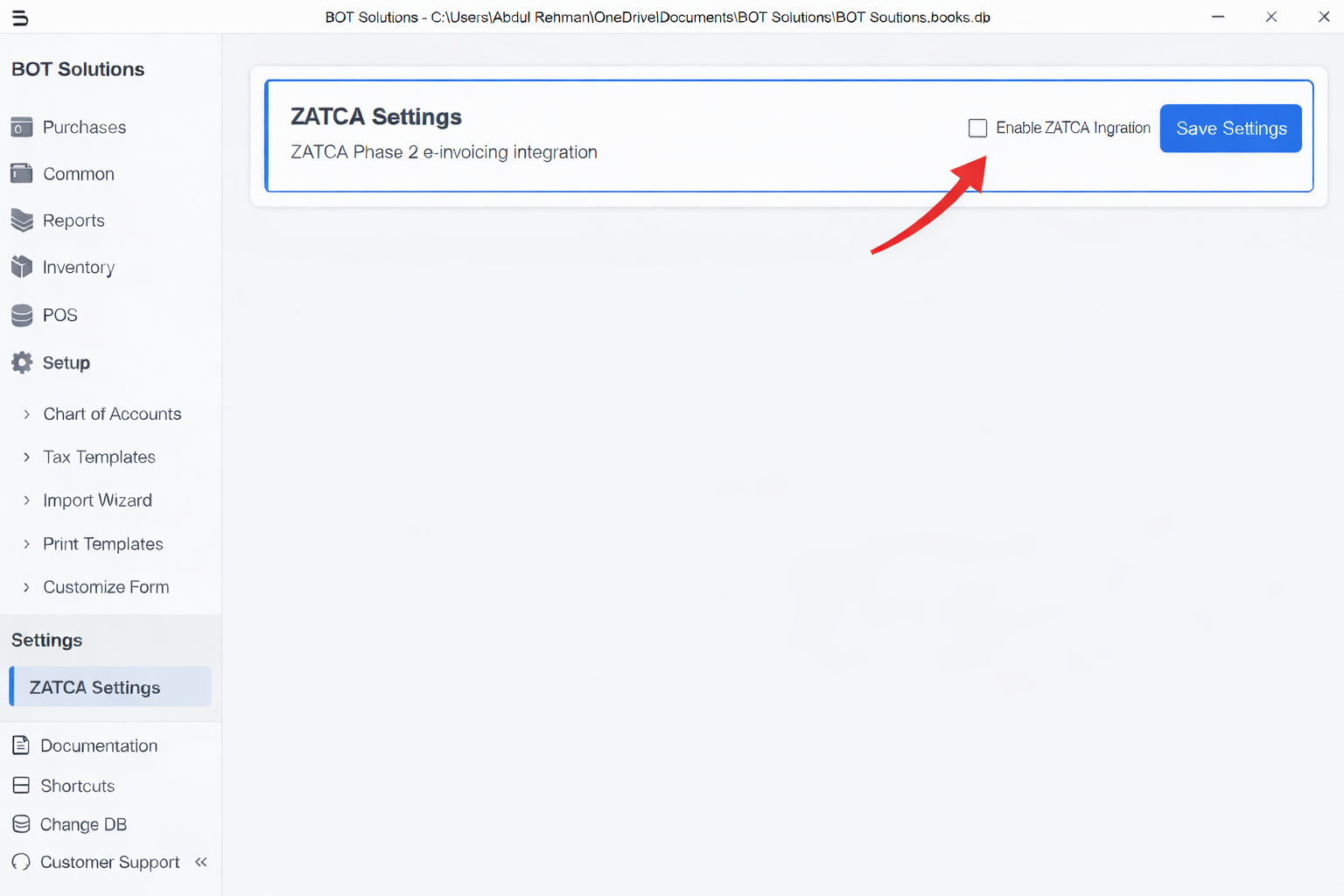
Once enabled, additional configuration options will become available.
Step 2: Configure Basic Settings
Fatoora Server Environment
Select the appropriate environment:
- Sandbox: ZATCA test environment (for initial testing)
- Simulation: Test environment requiring OTP from Fatoorah platform
- Production: ZATCA production environment (for live operations)
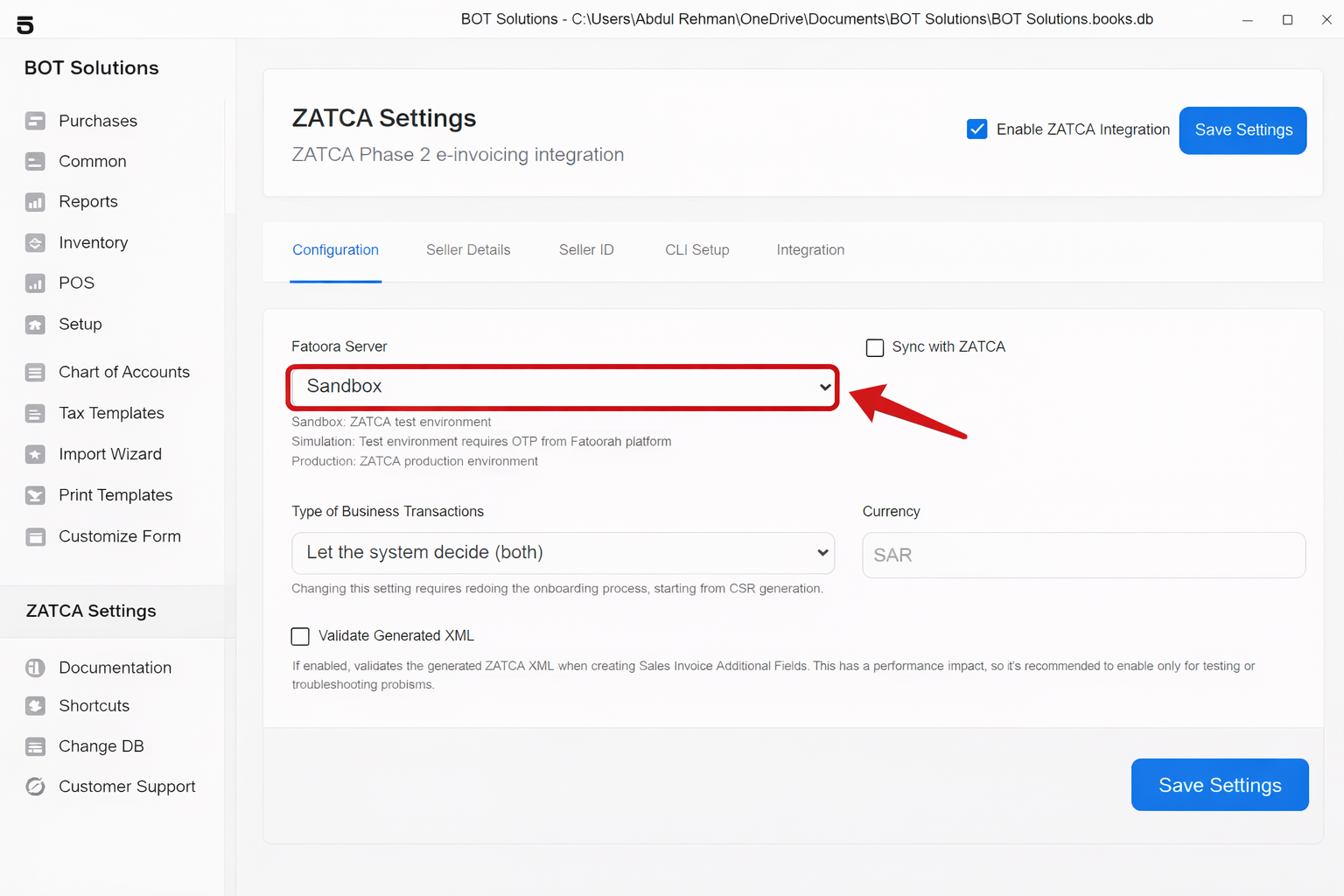
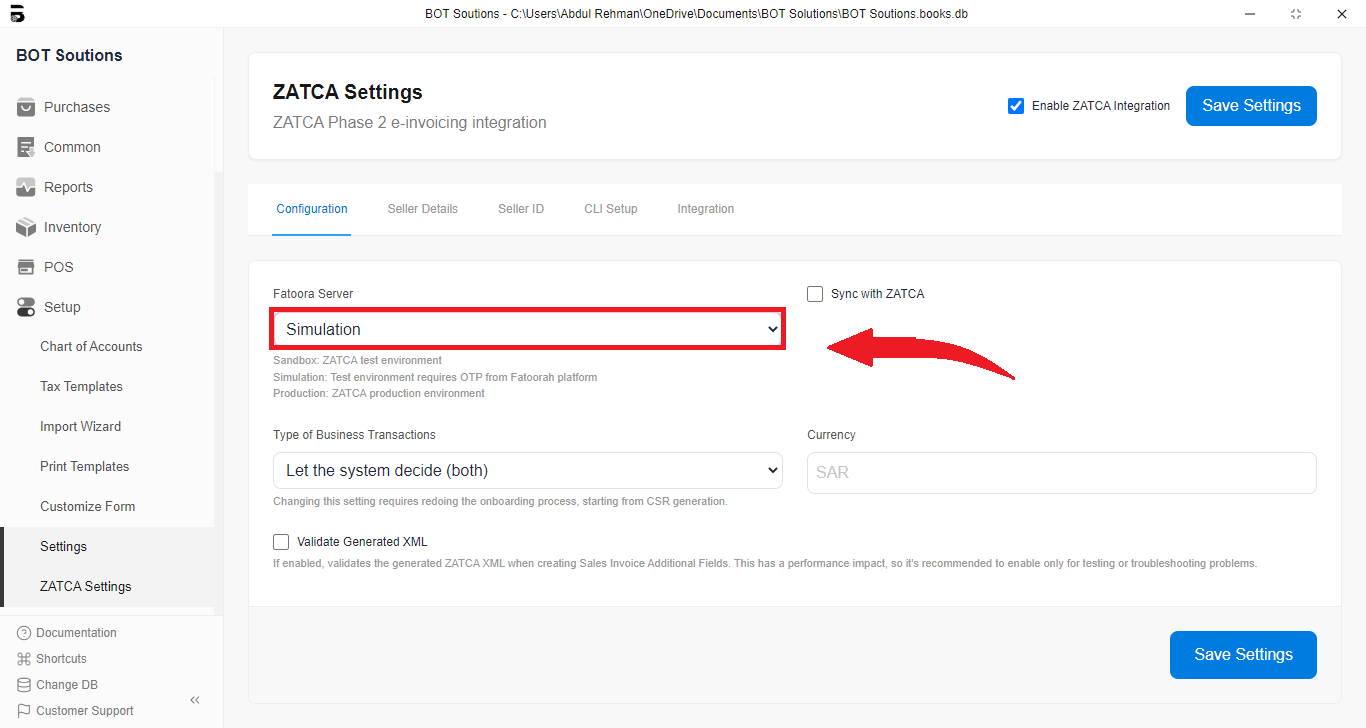
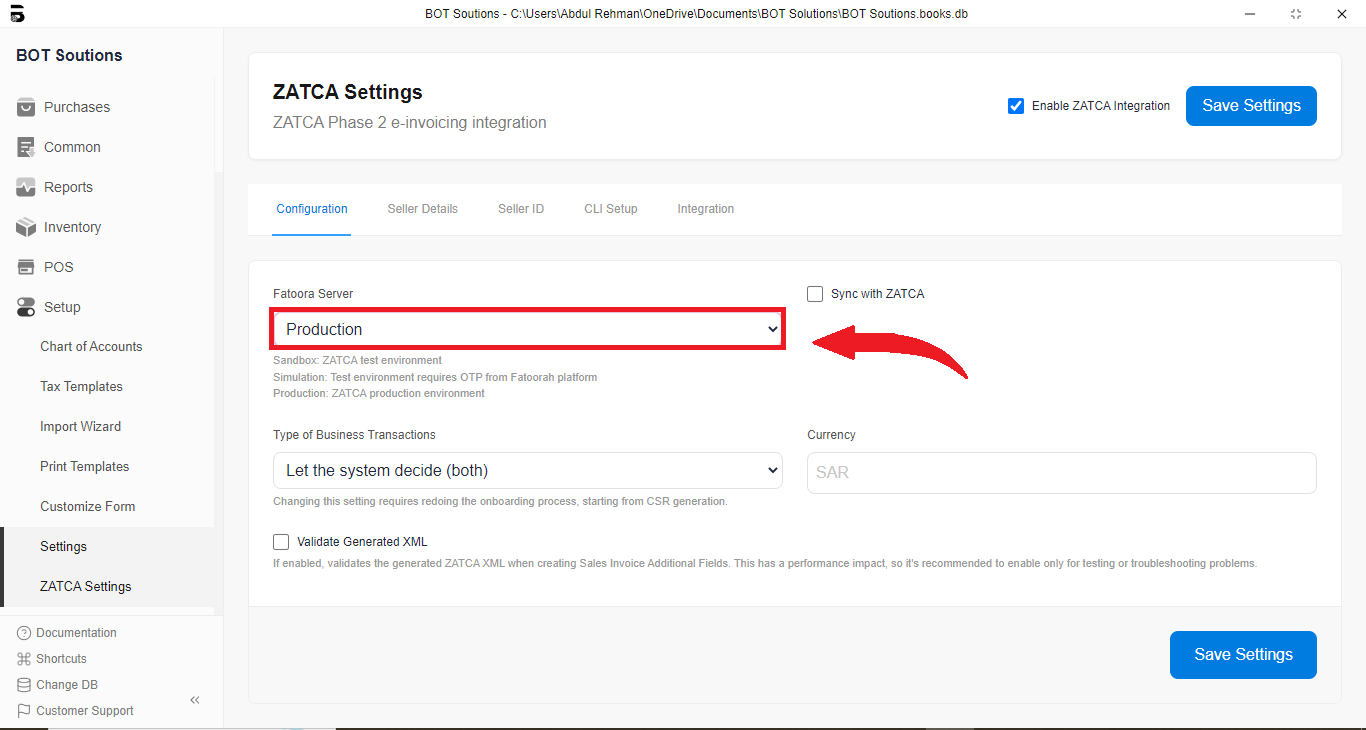
Important: Start with Sandbox for testing, then move to Simulation before going to Production.
Type of Business Transactions
Choose your business transaction type:
- Let the system decide (both): Automatically determines B2B or B2C based on customer VAT registration
- B2B: Business-to-Business transactions only
- B2C: Business-to-Consumer transactions only
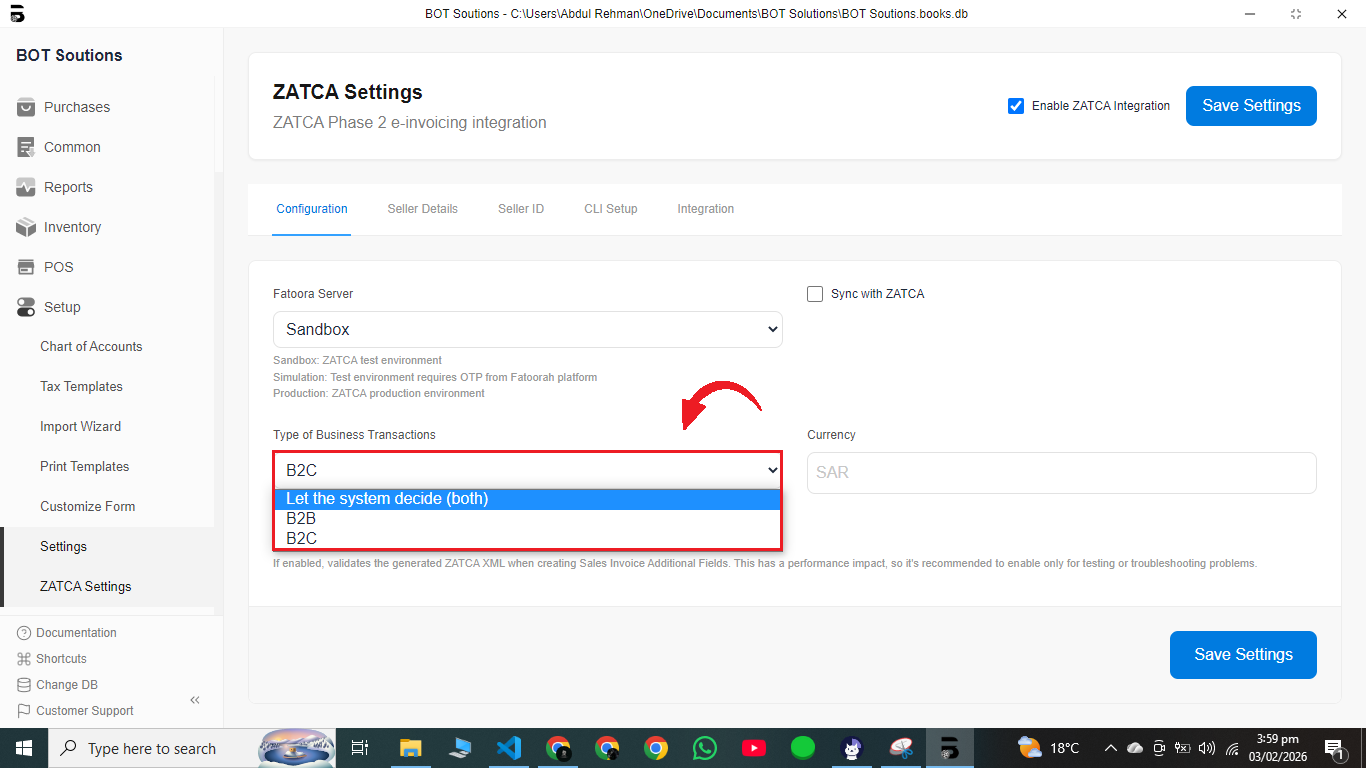
Note: Changing this setting requires redoing the onboarding process from CSR generation.
Currency
Select the currency for your invoices (typically SAR for Saudi Arabia).
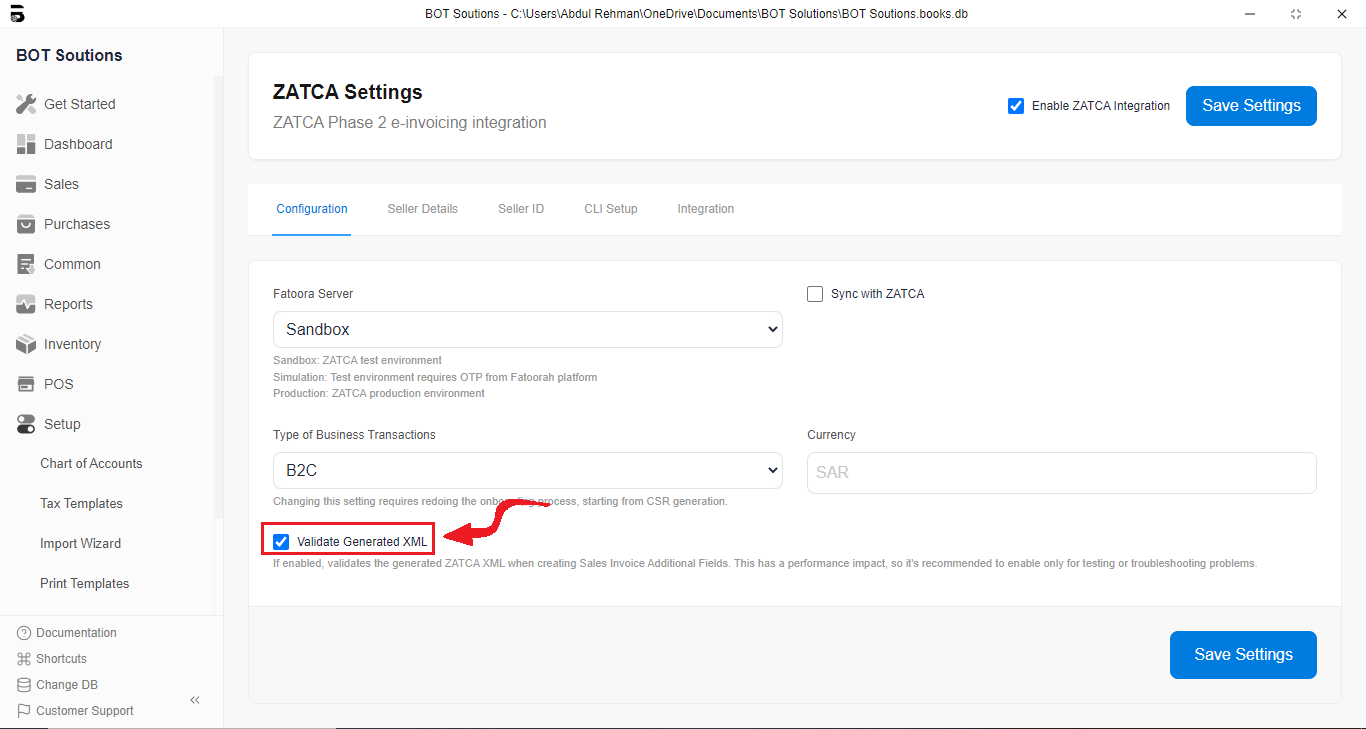
Validate Generated XML
- Enabled: Validates XML during creation (recommended for testing/troubleshooting)
- Disabled: Skips validation for better performance (recommended for production)
Configuration
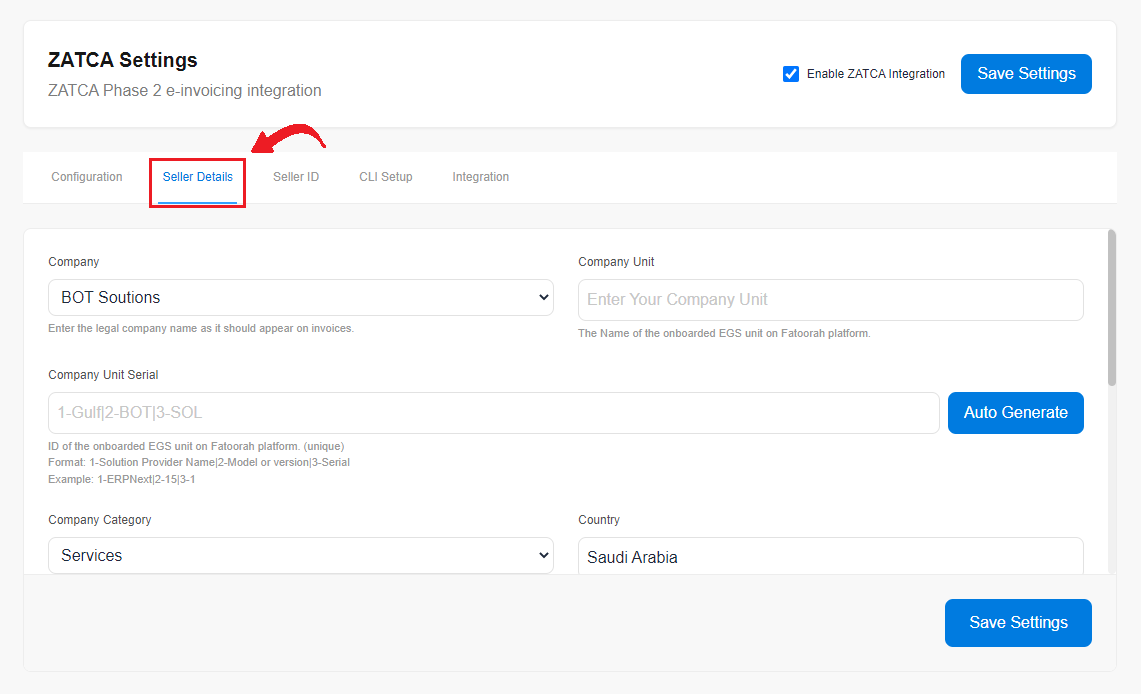
Seller Details Configuration
Navigate to the "Seller Details" tab in ZATCA Settings:
Required Fields
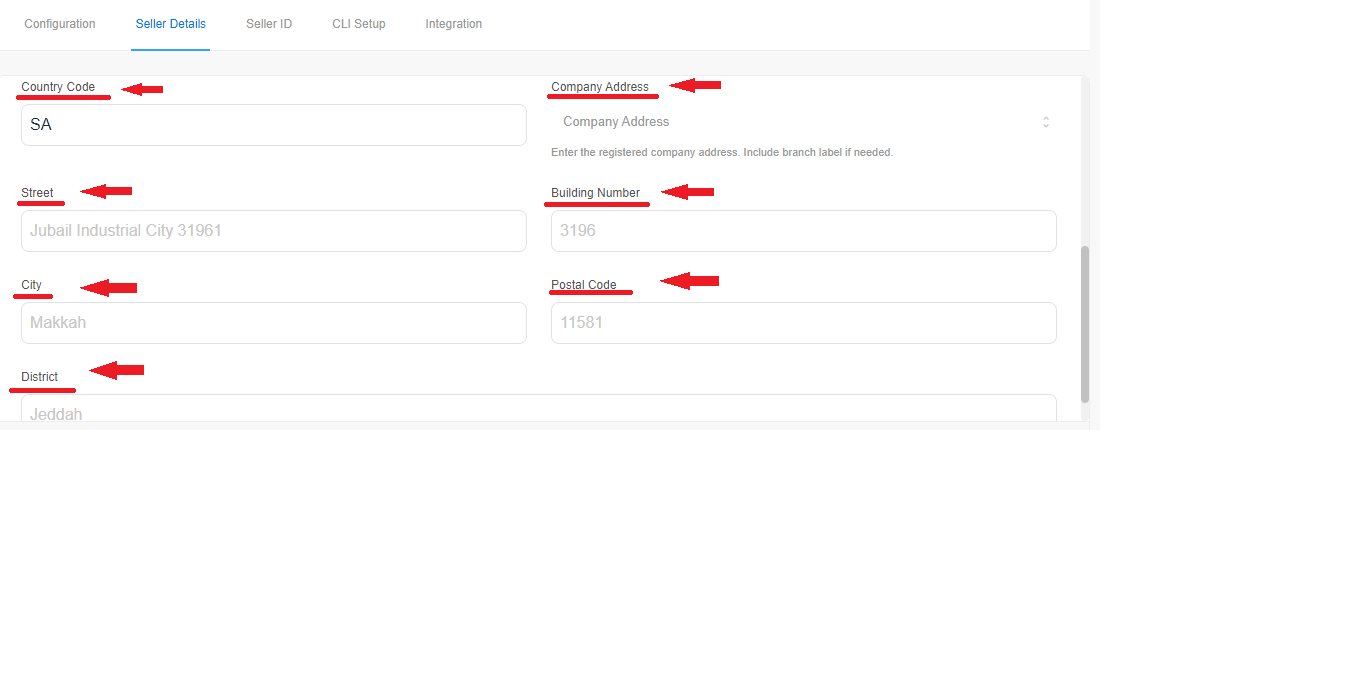
“The following required fields must be completed accurately to ensure successful ZATCA integration. Each field is explained below for clarity.”
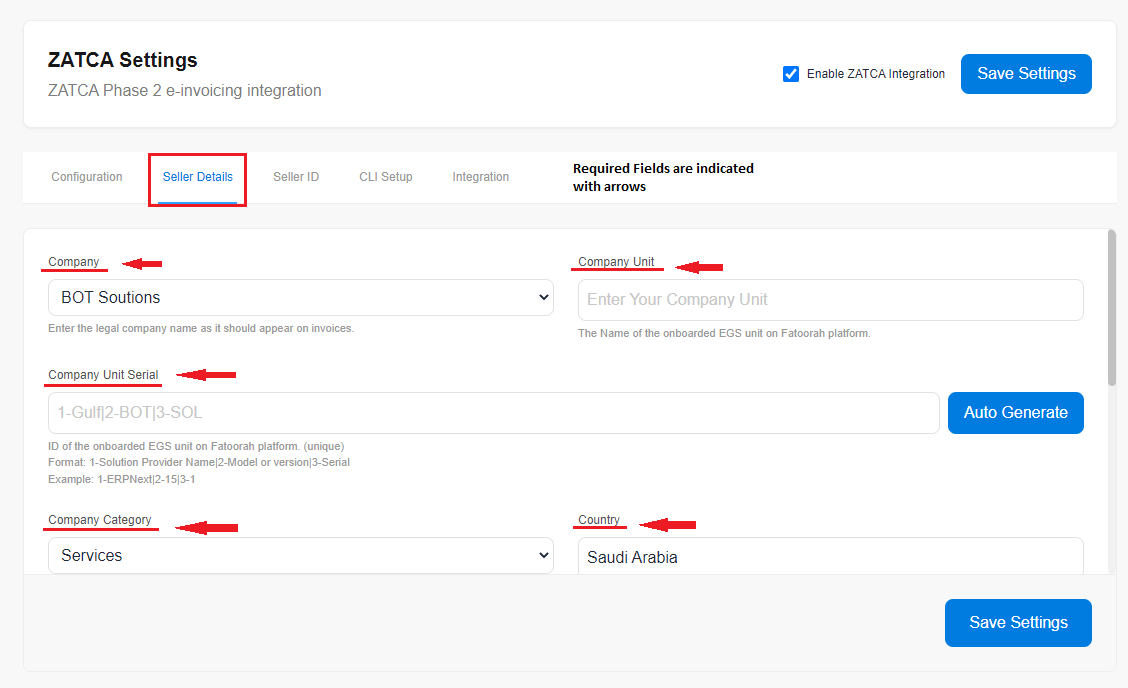
- Company: Enter your legal company name as it should appear on invoices
- Company Unit: The name of the onboarded EGS (Electronic Generation System) unit on Fatoorah platform
- Company Unit Serial: Unique identifier for your EGS unit
- Format:
1-Solution Provider Name|2-Model or version|3-Serial - Example:
1-ERPNext|2-15|3-1 - Use the "Auto Generate" button to automatically generate this value
- Format:
- Company Category: Select from:
- Services
- Goods
- Both
- Country & Country Code:
- Country: Saudi Arabia
- Country Code: SA
- Company Address: Complete address details:
- Company Address (full address)
- Street
- Building Number
- City
- Postal Code
- District
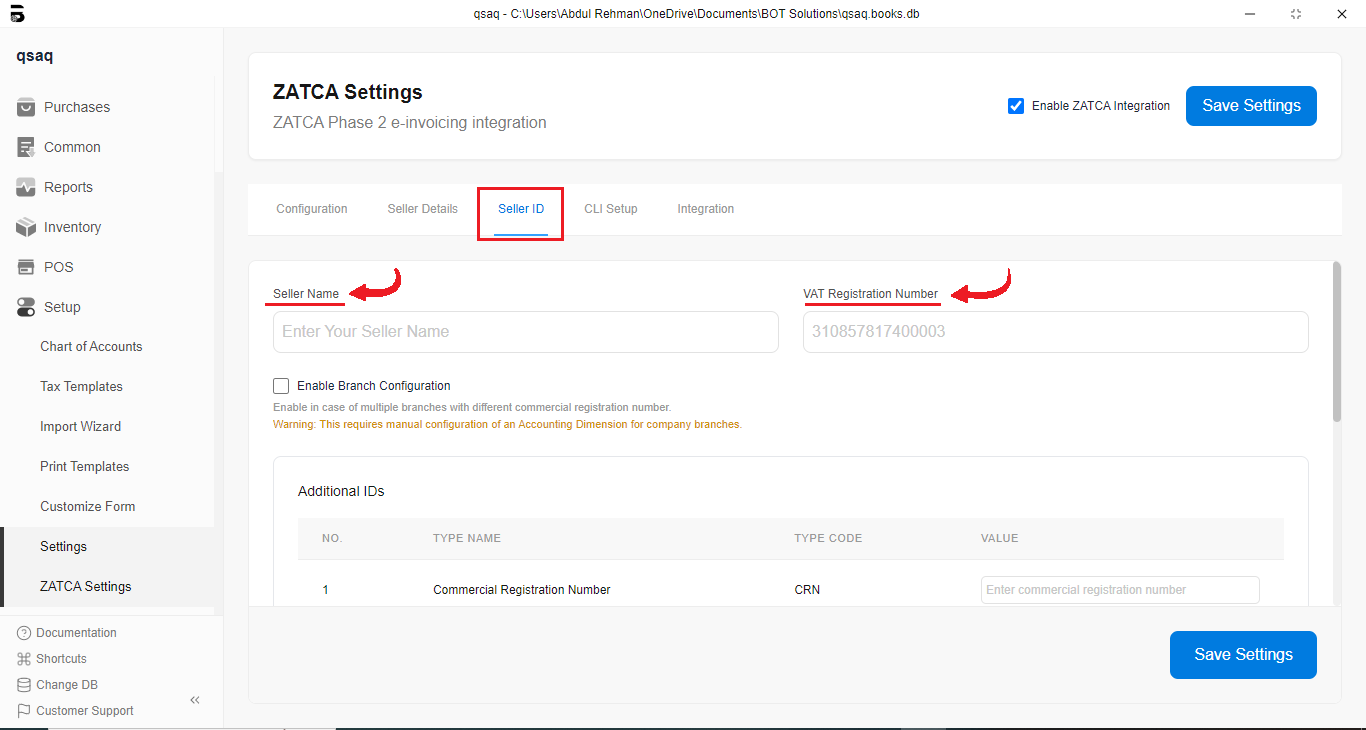
Seller ID Configuration
Required Fields
- Seller Name: Your registered seller name
- VAT Registration Number: Your 15-digit VAT registration number
Branch Configuration (Optional)
If you have multiple branches with different commercial registration numbers:
- Enable "Enable Branch Configuration"
- Configure Accounting Dimensions for company branches
- Set up branch-specific VAT registration numbers
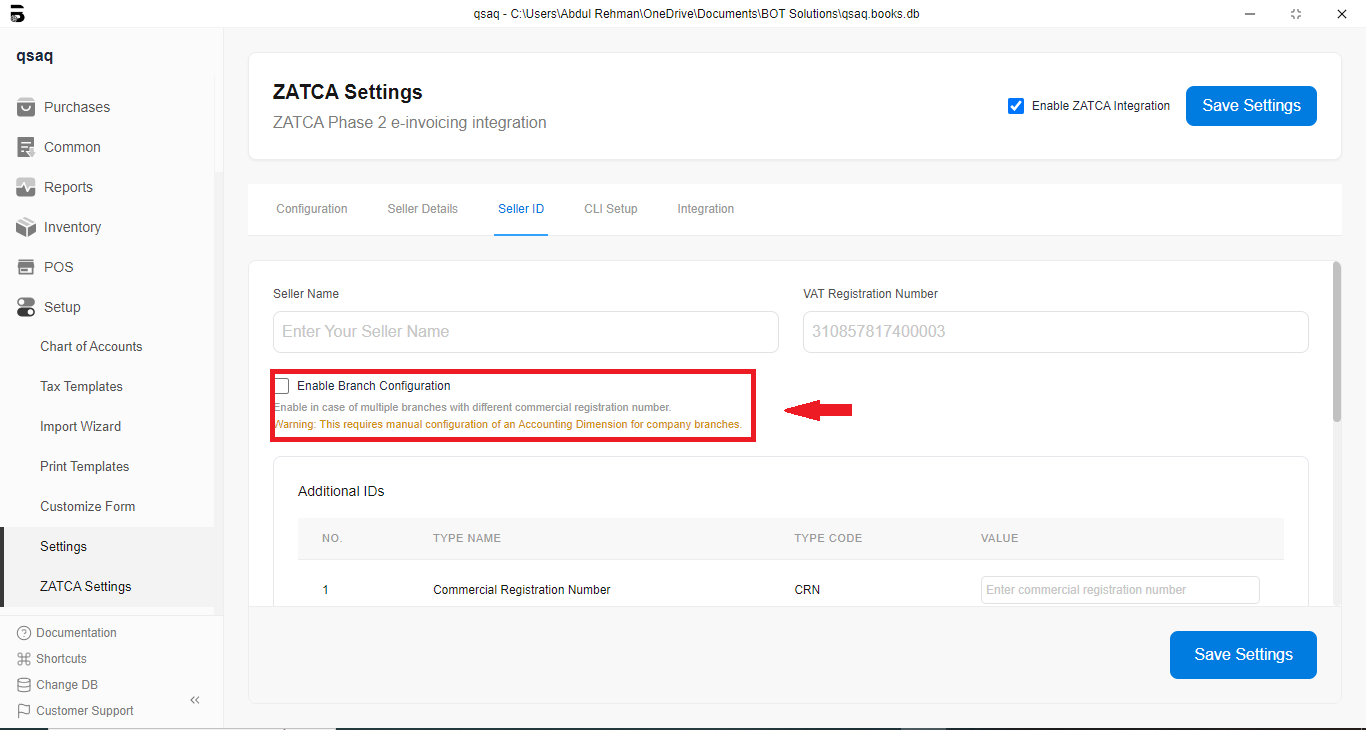
Warning: Branch configuration requires manual setup of Accounting Dimensions.
Additional IDs (Optional)
Add additional identification numbers if required:
- Commercial Registration Number (CRN)
- MOMRAH License
- MHRSD License
- 700 Number
- MISA License
- Other ID
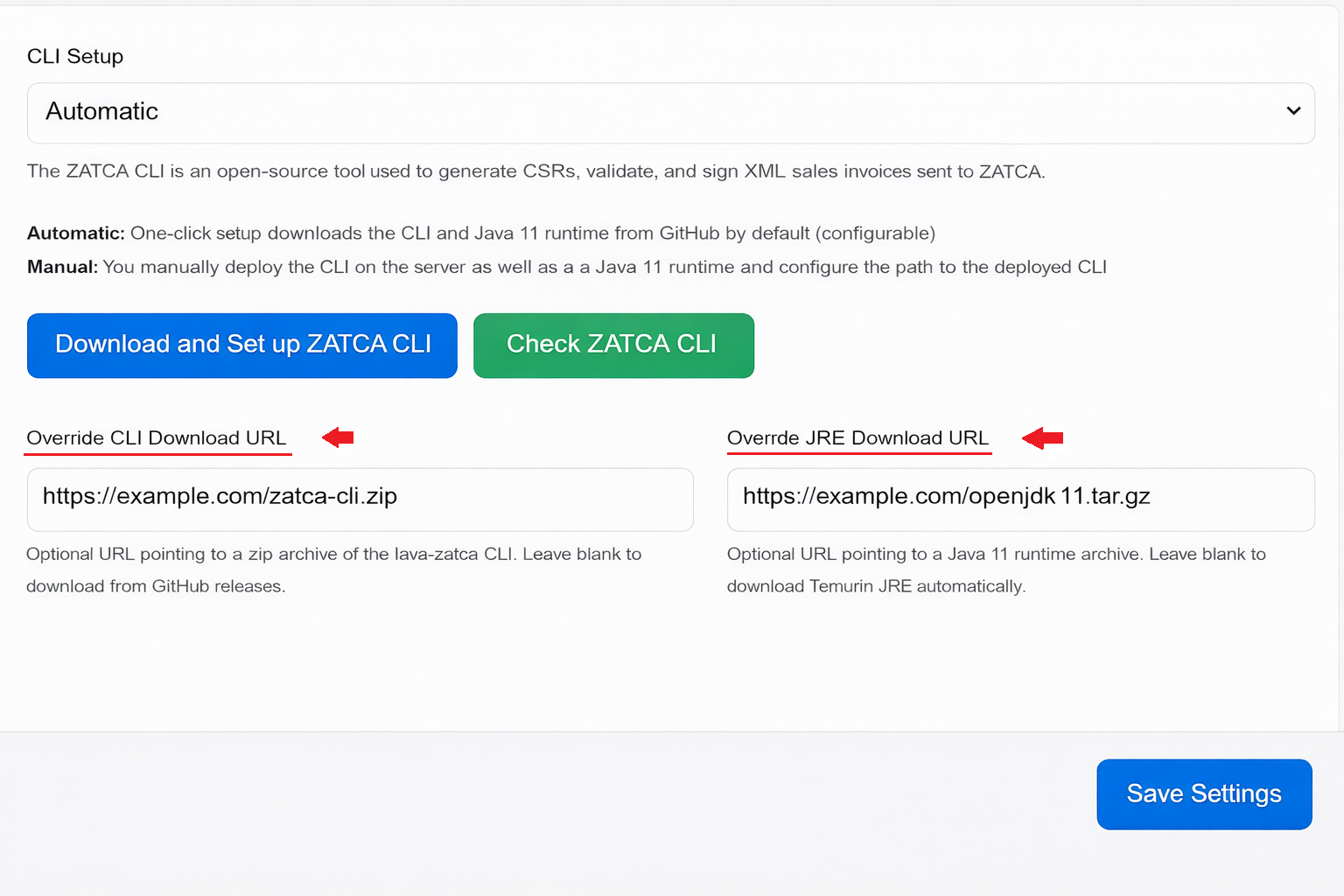
CLI Setup
The ZATCA CLI (Command Line Interface) is required for:
- Generating Certificate Signing Requests (CSR)
- Validating XML invoices
- Signing invoices digitally
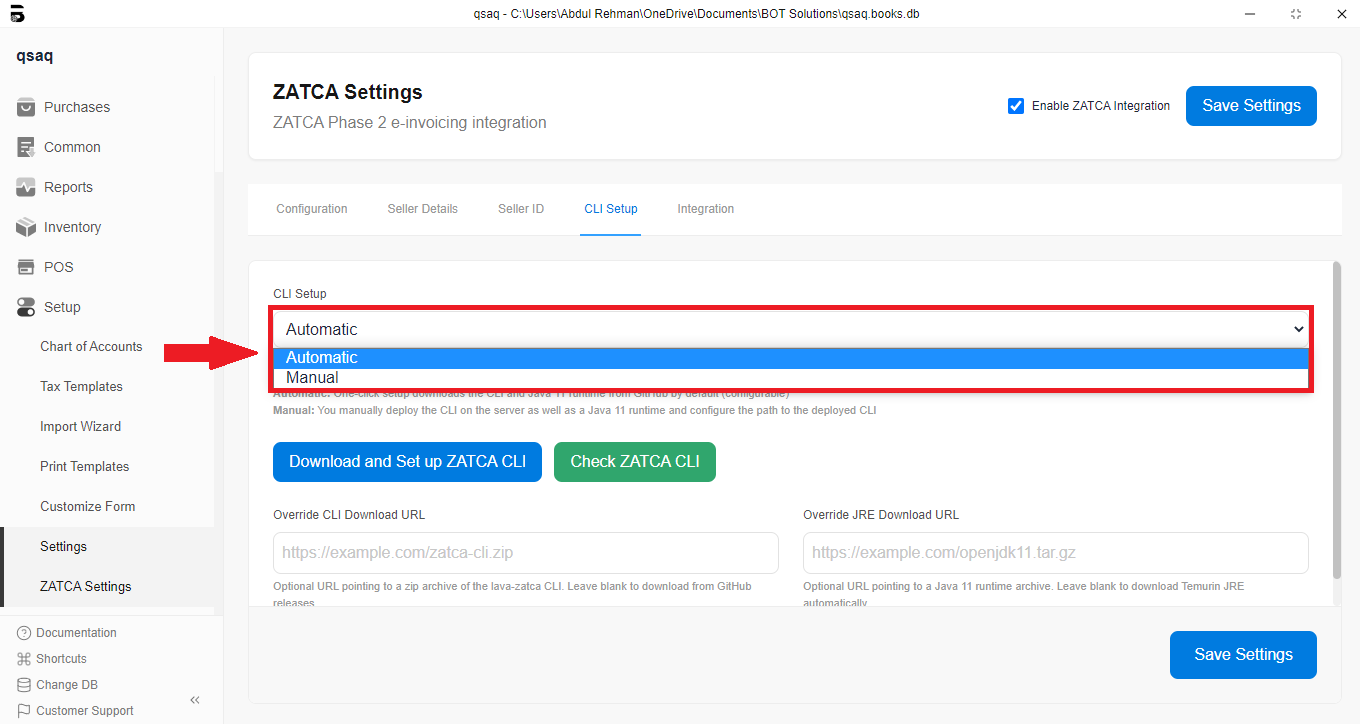
Automatic Setup (Recommended)
- Select "CLI Setup" → "Automatic"
- The system will automatically:
- Download ZATCA CLI from GitHub
- Download Java 11 runtime (if needed)
- Configure paths automatically
Manual Setup
If you prefer manual setup:
- Select "CLI Setup" → "Manual"
- Download ZATCA CLI from: https://github.com/zatca/fatoora
- Install Java 11 or higher
- Configure paths:
- CLI Path: Full path to zatca-cli executable
- Example:
/home/user/zatca-cli/bin/zatca-cli(Linux/Mac) - Example:
C:\zatca-cli\bin\zatca-cli.bat(Windows)
- Example:
- Java Home: JAVA_HOME path (leave blank to use system default)
- CLI Path: Full path to zatca-cli executable
Override Download URLs (Advanced)
If you need to use custom download sources:
- Override CLI Download URL: Custom URL for CLI zip file
- Override JRE Download URL: Custom URL for Java runtime
Sales Invoice Additional Fields
When ZATCA integration is enabled, each Sales Invoice automatically creates a Sales Invoice Additional Fields document containing ZATCA-specific metadata.
Accessing Additional Fields
- Open any Sales Invoice
- Navigate to the "ZATCA" tab or section
- View the Sales Invoice Additional Fields link
- Click to open the additional fields document
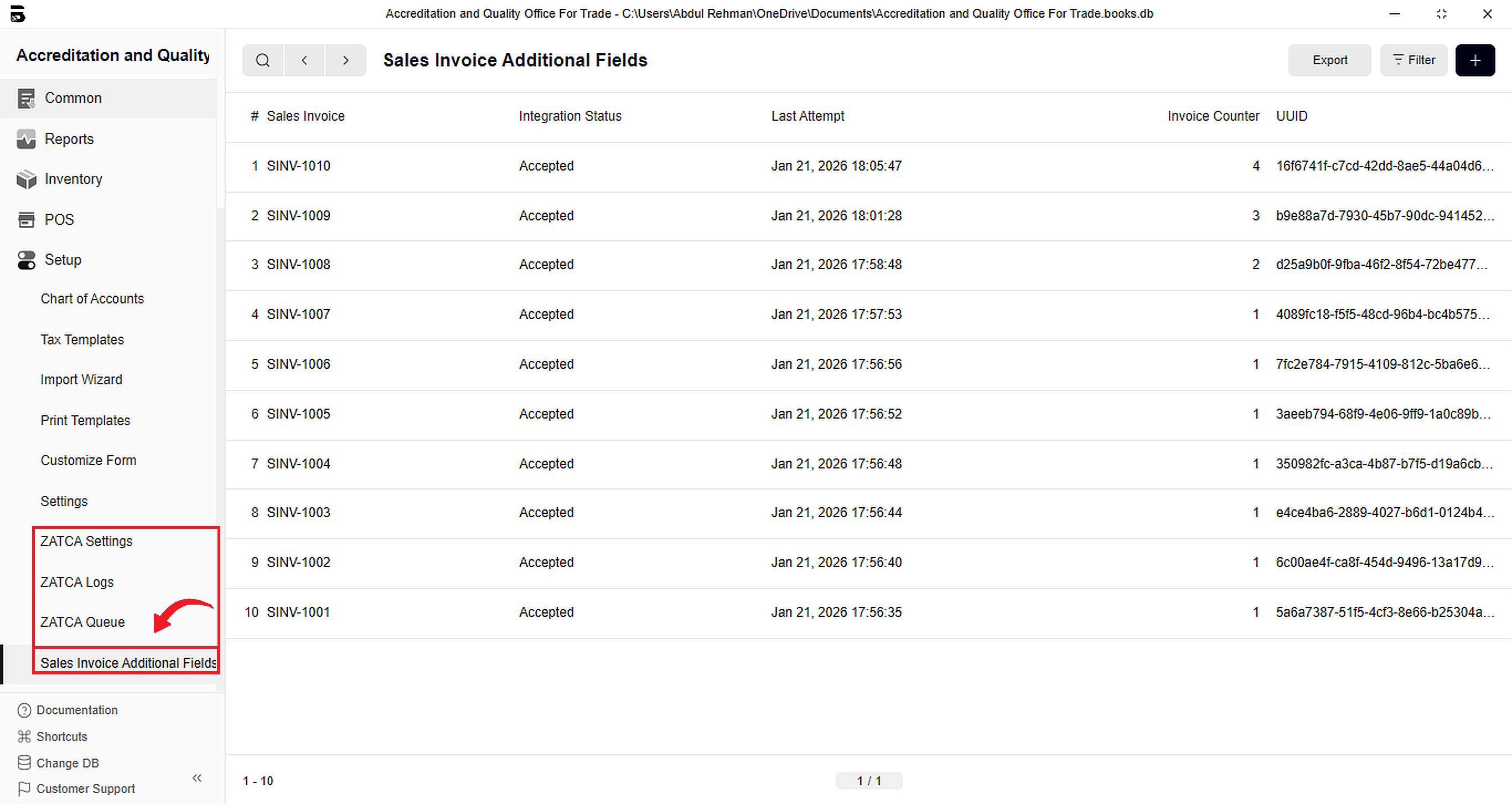
Key Fields in Additional Fields Document
Details Tab
- Sales Invoice: Link to the parent invoice
- Integration Status: Current status of ZATCA integration
Ready For Batch: Ready for submissionResend: Needs to be resentCorrected: Invoice was correctedAccepted: Successfully accepted by ZATCAAccepted with warnings: Accepted but has warningsRejected: Rejected by ZATCAClearance switched off: Clearance mode disabledDuplicate: Duplicate submission detected
- Last Attempt: Timestamp of last submission attempt
- Invoice Doctype: Type of invoice (Sales Invoice, POS Invoice, Payment Entry)
- Is Latest: Indicates if this is the latest version
- UUID: Unique identifier assigned by ZATCA
- Invoice Type Code: ZATCA invoice type code
- Invoice Type Transaction: Transaction type (B2B/B2C)
- Tax Currency: Currency code (typically SAR)
- Invoice Counter: Sequential counter for invoice hashing
- Invoice Hash: Cryptographic hash of the invoice
- Previous Invoice Hash: Hash of the previous invoice (for chaining)
Buyer Tab
- Buyer VAT Registration Number: Customer's VAT number (if B2B)
- Other Buyer IDs: Additional buyer identification numbers
- Buyer Address Details: Complete buyer address information
Invoice Tab
- Allowance Indicator: Indicates if allowances are applied
- Charge Indicator: Indicates if charges are applied
- Fatoora Invoice Discount Amount: Discount amount
- Sum of Charges: Total charges
- Invoice Line Charge Percentage: Percentage-based charges
- Invoice Line Charge Amount: Amount-based charges
- Prepayment VAT Category: Prepayment VAT details
XML Tab
- Invoice XML: Generated ZATCA XML (hidden by default)
- Download XML: Button to download the XML file
- QR Code: QR code image for the invoice
Integration Status Meanings
| Status | Description | Action Required |
|---|---|---|
| Ready For Batch | Invoice is ready for submission | None - will be processed automatically |
| Resend | Previous submission failed | Check errors and resubmit |
| Corrected | Invoice was corrected after submission | None - corrected version will be submitted |
| Accepted | Successfully accepted by ZATCA | None |
| Accepted with warnings | Accepted but has warnings | Review warnings |
| Rejected | Rejected by ZATCA | Fix errors and resubmit |
| Clearance switched off | Clearance mode is disabled | Enable clearance mode if needed |
| Duplicate | Duplicate submission detected | Check if invoice was already submitted |
Troubleshooting
Common Issues and Solutions
1. CLI Not Found or Not Working
Symptoms:
- Error: "CLI path is not configured"
- Error: "CLI verification failed"
Solutions:
- Verify CLI is installed: Click "Check CLI" in settings
- For Automatic setup: Ensure internet connection and try again
- For Manual setup: Verify CLI path is correct and executable
- Check Java installation: Ensure Java 11+ is installed and JAVA_HOME is set
2. Onboarding Failed
Symptoms:
- Error: "OTP verification failed"
- Error: "CSR generation failed"
Solutions:
- Verify all Seller Details are correctly filled
- Ensure OTP is entered correctly (check for typos)
- Verify OTP hasn't expired (OTPs are time-limited)
- Check internet connection
- Verify CSR format is correct
3. Invoice Submission Failed
Symptoms:
- Integration Status: "Rejected" or "Failed"
- Errors in Integration Log
Solutions:
- Check Errors field in Integration Log for specific issues
- Verify invoice has all required fields:
- Customer VAT number (for B2B)
- Complete address information
- Valid items with prices
- Tax calculations
- Check invoice counter and hash chain
- Verify ZATCA credentials are valid
- Check if invoice exceeds ZATCA limits
4. XML Validation Errors
Symptoms:
- Error: "XML validation failed"
- Error: "Invalid XML structure"
Solutions:
- Enable "Validate Generated XML" in settings for detailed errors
- Check invoice data completeness
- Verify all required ZATCA fields are present
- Review XML file directly (download from Additional Fields)
5. Hash Chain Broken
Symptoms:
- Error: "Previous invoice hash mismatch"
- Error: "Invoice counter invalid"
Solutions:
- Verify invoices are submitted in order
- Check if any invoices were deleted or modified
- Reset invoice counter if necessary (contact support)
- Ensure no manual invoice counter changes
6. Credentials Not Working
Symptoms:
- Error: "Authentication failed"
- Error: "Invalid credentials"
Solutions:
- Verify credentials are correctly entered
- Check if credentials have expired
- Ensure correct environment (Sandbox/Simulation/Production)
- Re-run onboarding if credentials are invalid
7. QR Code Not Generated
Symptoms:
- QR Code field is empty
- QR Code image not displayed
Solutions:
- Verify invoice was successfully submitted
- Check if UUID was received from ZATCA
- Ensure invoice status is "Accepted" or "Accepted with warnings"
- Try resubmitting the invoice
Debugging Tips
- Enable XML Validation: Turn on "Validate Generated XML" to catch issues early
- Check Integration Logs: Always check logs for detailed error messages
- Review XML Files: Download and review XML files for structure issues
- Test in Sandbox First: Always test in Sandbox before Production
- Monitor Queue Status: Check ZATCA Staged Invoice for processing status
Best Practices
Configuration Best Practices
- Start with Sandbox: Always begin testing in Sandbox environment
- Complete Seller Details: Ensure all seller information is accurate and complete
- Use Automatic CLI Setup: Prefer automatic setup unless you have specific requirements
- Keep Credentials Secure: Never share ZATCA credentials
- Regular Backups: Backup ZATCA settings and credentials
Invoice Creation Best Practices
- Complete Customer Information: Ensure customer addresses are complete for B2B invoices
- Verify VAT Numbers: Validate customer VAT registration numbers
- Accurate Tax Calculations: Ensure tax calculations are correct
- Proper Item Descriptions: Use clear, descriptive item names
- Correct Invoice Types: Use appropriate invoice types (Standard/Simplified)
Submission Best Practices
- Submit Immediately: Submit invoices as soon as they're created
- Monitor Status: Regularly check integration status
- Address Warnings: Don't ignore warnings - address them promptly
- Maintain Hash Chain: Never skip or delete invoices in the chain
- Regular Audits: Periodically review Integration Logs
Production Best Practices
- Complete Compliance Testing: Pass all compliance tests before going live
- Monitor First Invoices: Closely monitor first production invoices
- Set Up Alerts: Configure alerts for failed submissions
- Regular Testing: Periodically test in Sandbox to ensure system works
- Keep Documentation: Maintain records of all ZATCA operations
Security Best Practices
- Secure Credentials: Store credentials securely
- Limit Access: Restrict ZATCA Settings access to authorized personnel
- Regular Updates: Keep ZATCA CLI updated
- Monitor Logs: Regularly review logs for suspicious activity
- Backup Regularly: Regular backups of all ZATCA data
Additional Resources
ZATCA Official Resources
- Fatoorah Platform: https://fatoorah.gov.sa
- ZATCA CLI GitHub: https://github.com/zatca/fatoora
- ZATCA Documentation: https://zatca.gov.sa
Support
For technical support or questions:
- Customer Support: https://helpdesk.botsolutions.tech/login#login
- Documentation: https://docs.botsolutions.tech
Glossary
- B2B: Business-to-Business transaction
- B2C: Business-to-Consumer transaction
- CLI: Command Line Interface
- CSR: Certificate Signing Request
- EGS: Electronic Generation System
- OTP: One-Time Password
- QR Code: Quick Response Code (for invoice verification)
- UUID: Universally Unique Identifier
- VAT: Value Added Tax
- XML: eXtensible Markup Language
- ZATCA: Zakat, Tax and Customs Authority (Saudi Arabia)