Onboarding Process
The onboarding process establishes your connection with ZATCA and obtains the necessary credentials for invoice submission.
Step 1: Generate Certificate Signing Request (CSR)
- Ensure all Seller Details are correctly filled
- Navigate to ZATCA Settings → Onboarding tab
- Click "Generate CSR" or "Check CLI" first to verify CLI is working
- The system will:
- Generate a CSR using your company details
- Display the CSR in the settings page
- Save the CSR for later use
Step 2: Submit CSR to Fatoorah Platform
- Copy the generated CSR from the settings page
- Log in to Fatoorah platform: https://fatoorah.gov.sa
- Navigate to Onboarding → CSR Submission
- Paste the CSR and submit
- You will receive an OTP (One-Time Password) via email/SMS
Step 3: Complete Onboarding
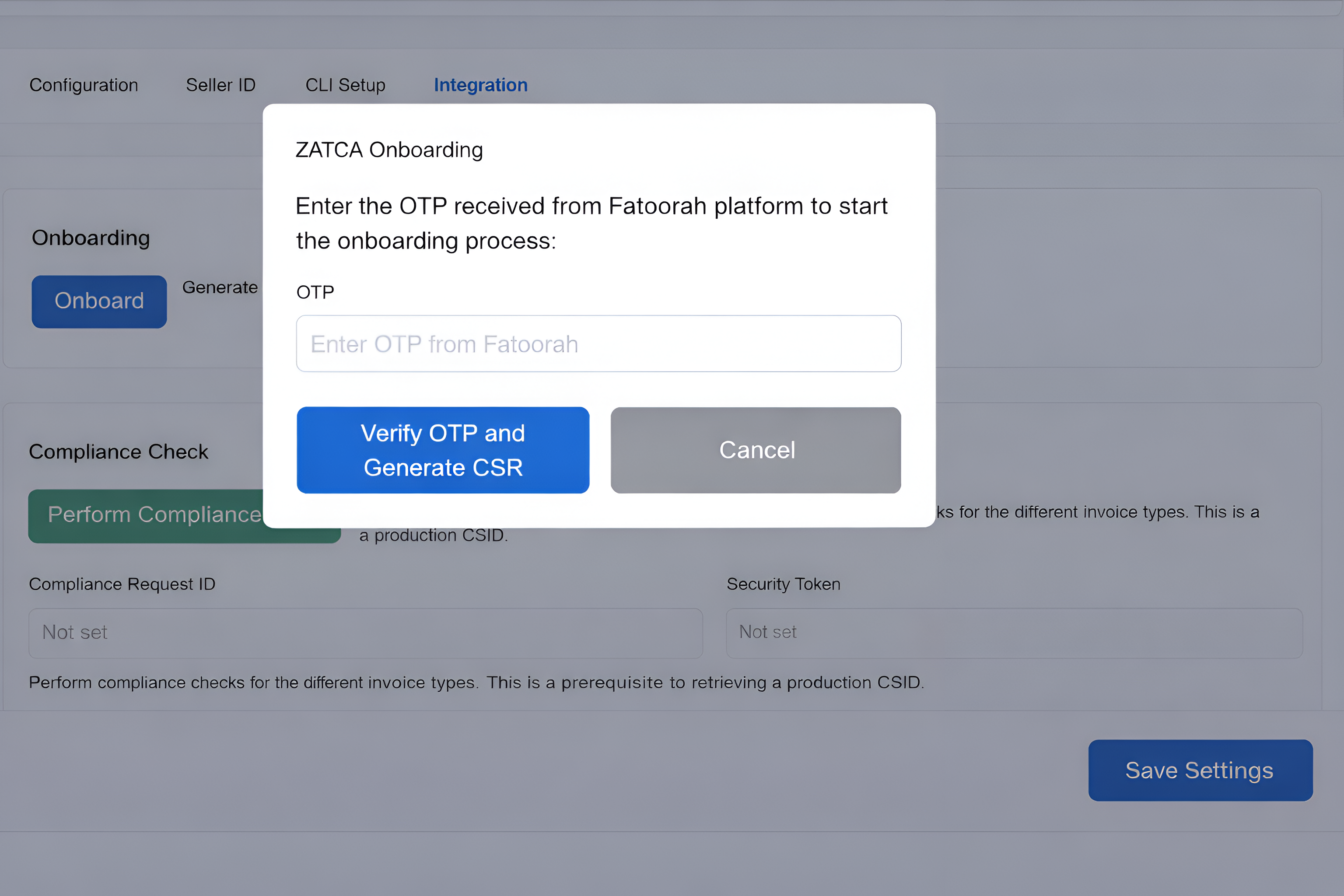
- In ZATCA Settings, click "Start Onboarding"
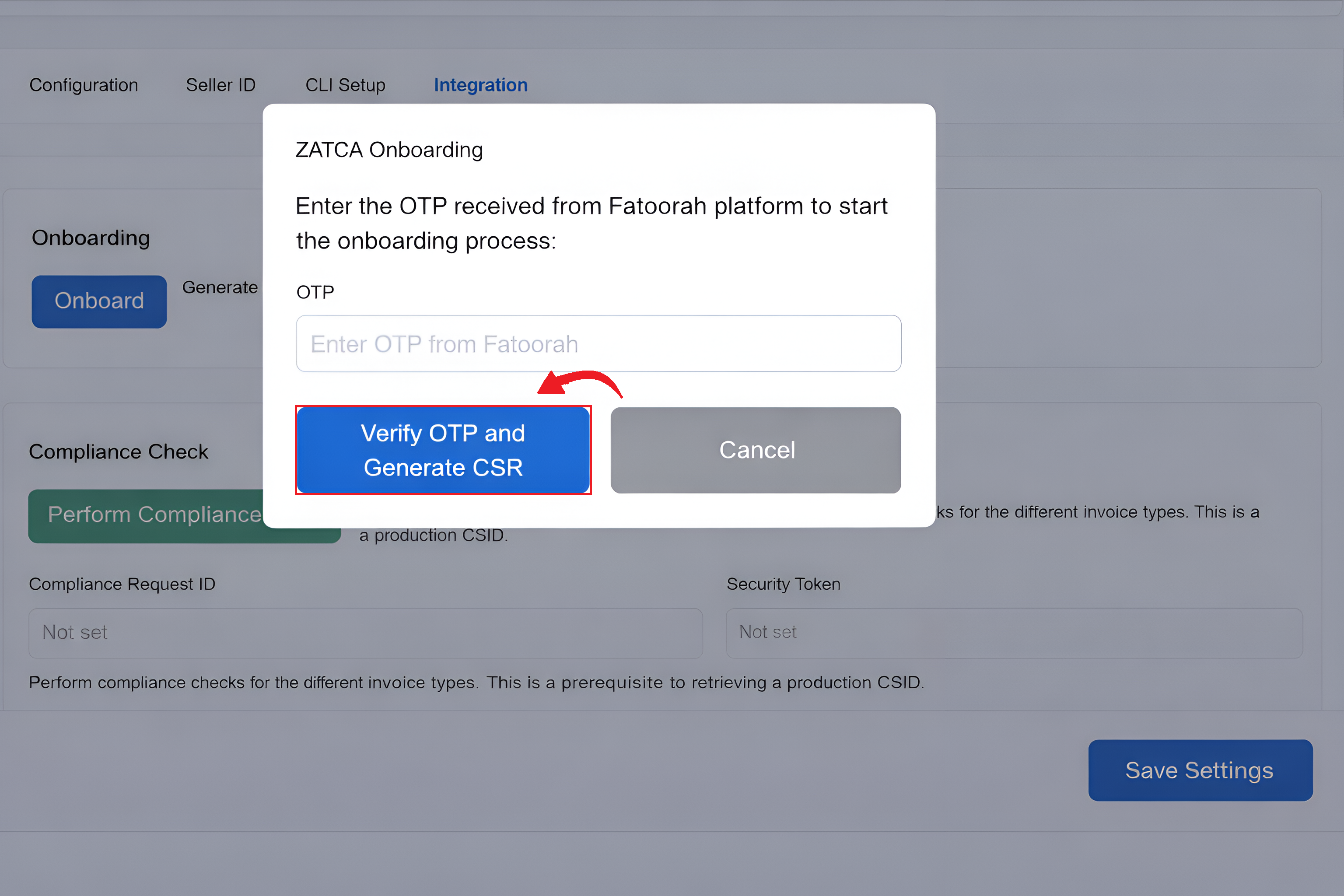
- Enter the OTP received from Fatoorah platform
- Click "Verify OTP and Generate CSR"
- The system will:
- Verify the OTP with ZATCA
- Receive compliance credentials (Request ID, Security Token, Secret)
- Save credentials automatically
Step 4: Compliance Testing
Before going to production, you must pass compliance testing:
Manual Compliance Check
- Create test invoices in your system
- Ensure invoices have all required ZATCA fields
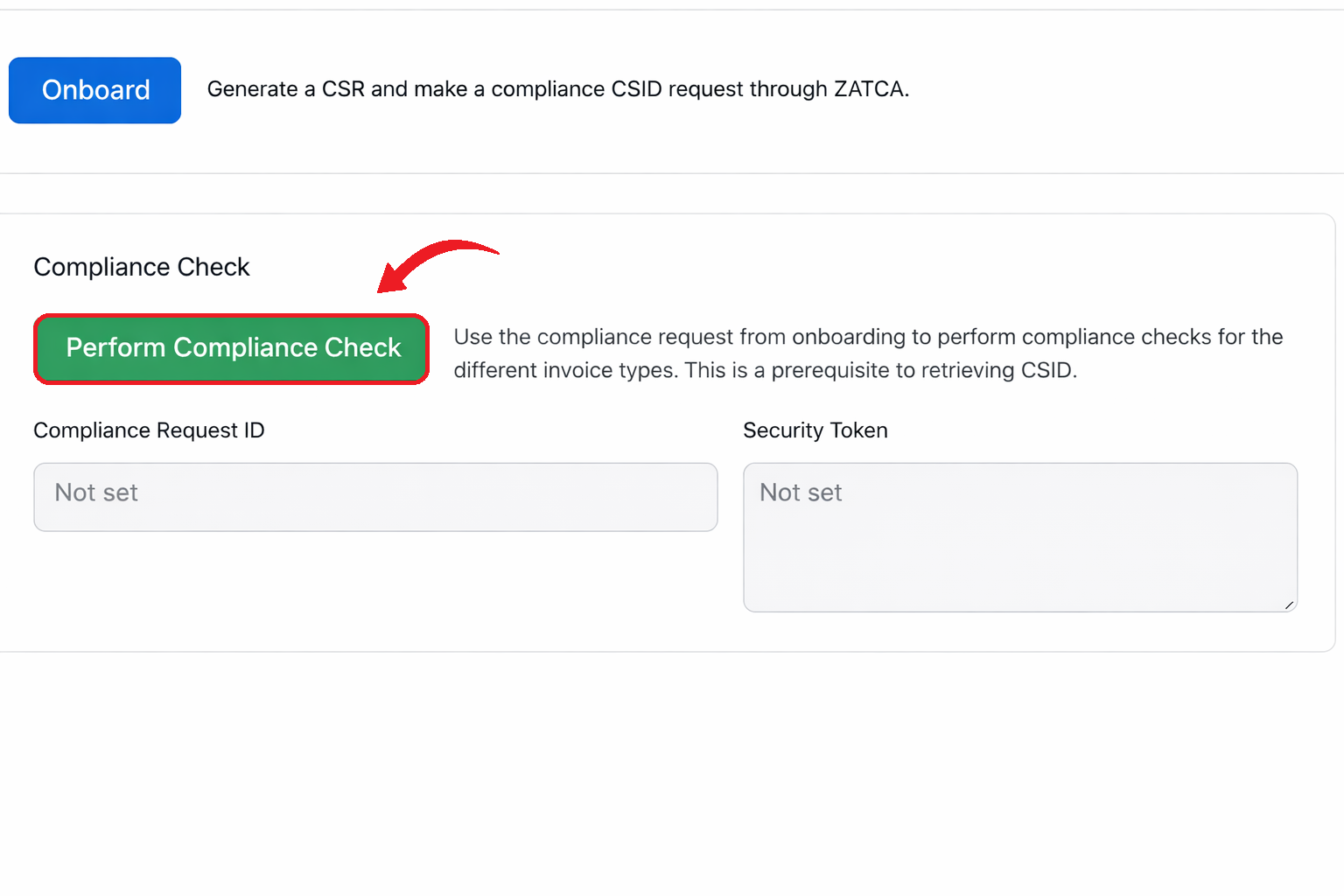
- In ZATCA Settings, click "Perform Compliance Check"
- Enter invoice names (comma-separated):
SINV-0001, SINV-0002 - Click "Submit to ZATCA"
- Review the results:
- Accepted: Invoice passed compliance
- Accepted with warnings: Invoice passed but has warnings
- Rejected: Invoice failed compliance (check errors)
Automated Compliance Check
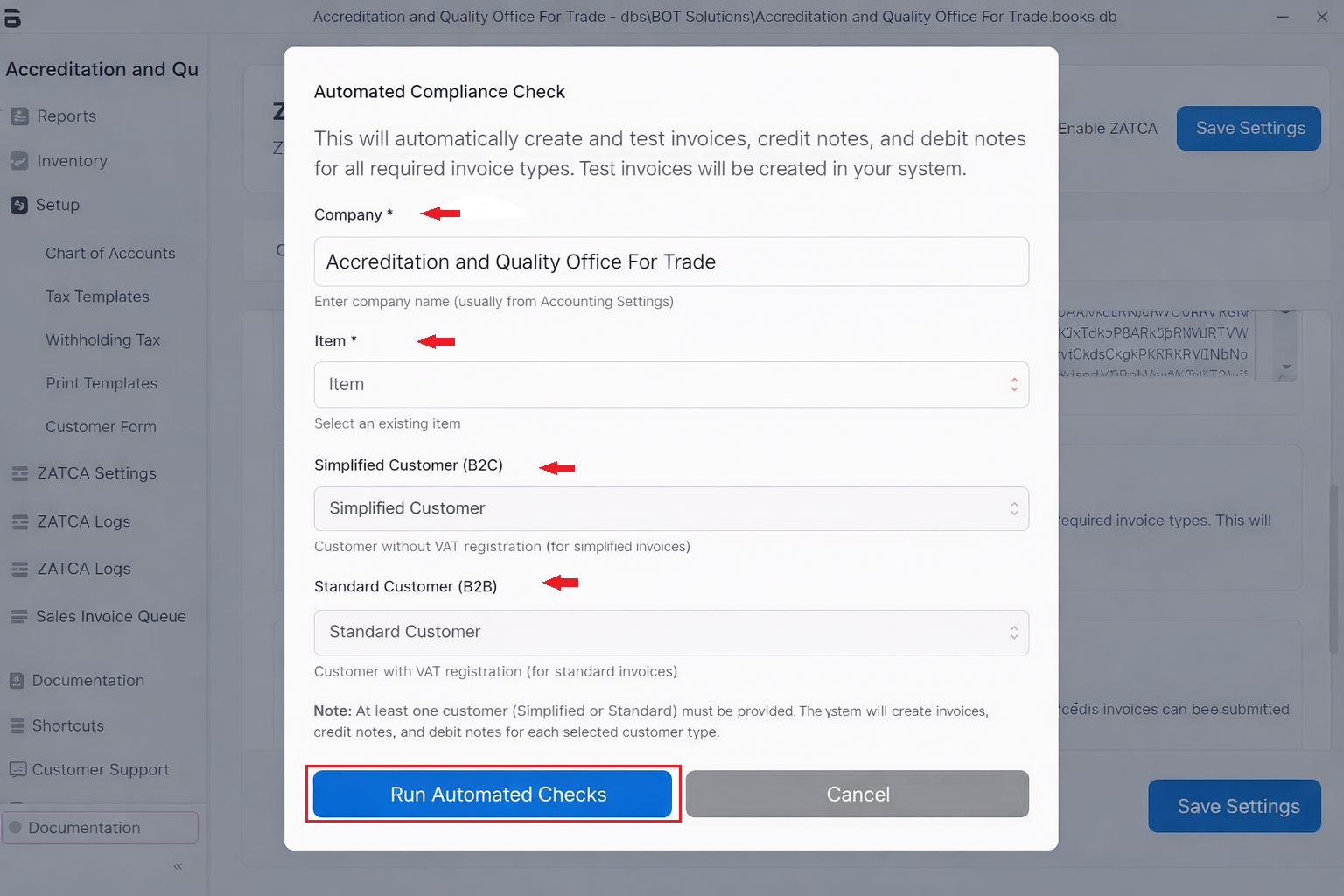
The system can automatically create and test various invoice types:
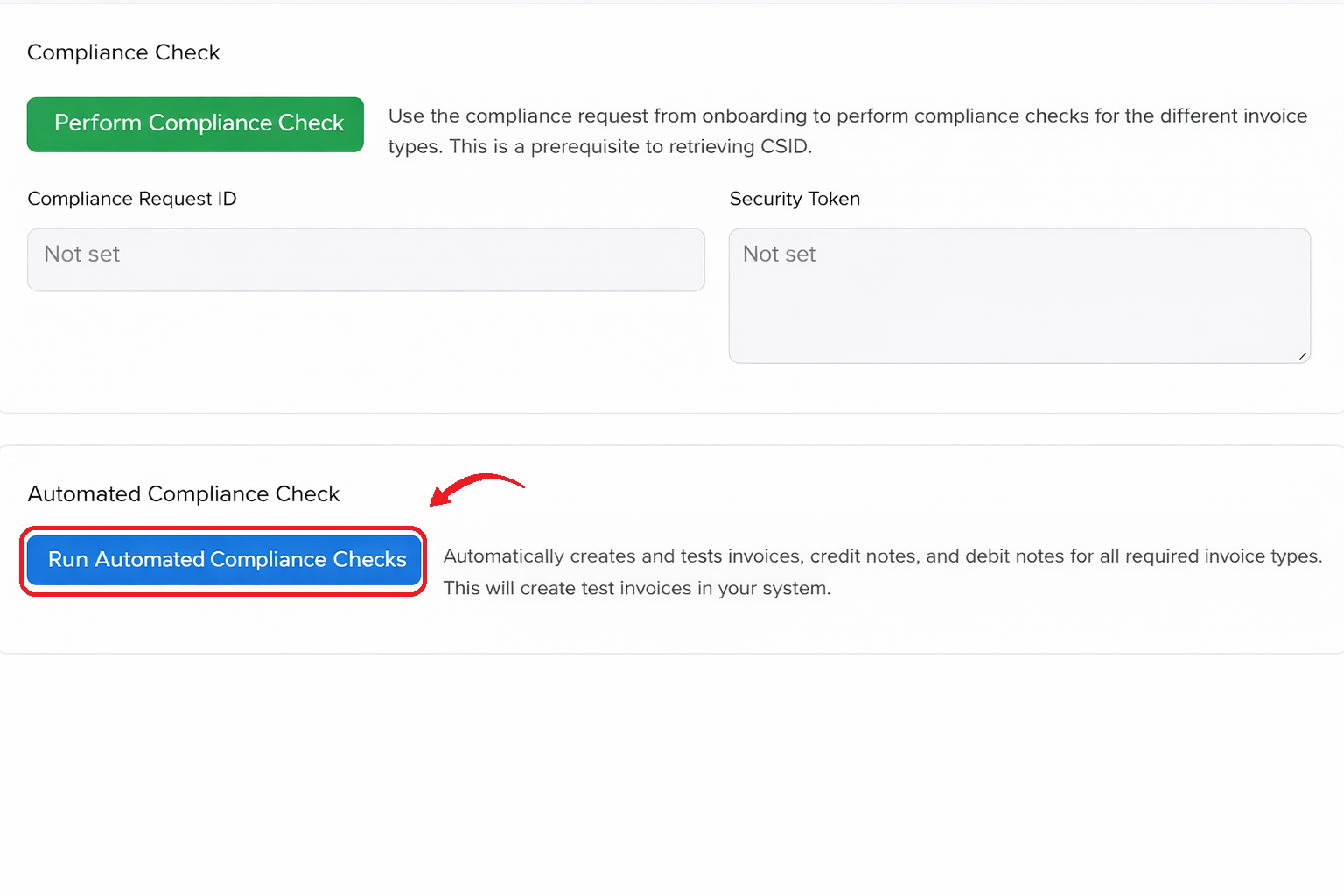
- Click "Automated Compliance Check"
- Fill in required parameters:
- Company: Your company name
- Item: Select an existing item
- Simplified Customer (B2C): Customer without VAT registration
- Standard Customer (B2B): Customer with VAT registration
- Click "Start Automated Compliance"
- The system will create and test:
- Standard invoices (B2B)
- Simplified invoices (B2C)
- Credit notes
- Debit notes
Step 5: Production Onboarding
Once compliance testing is successful:
- Log in to Fatoorah platform
- Navigate to Production Onboarding
- Submit your compliance test results
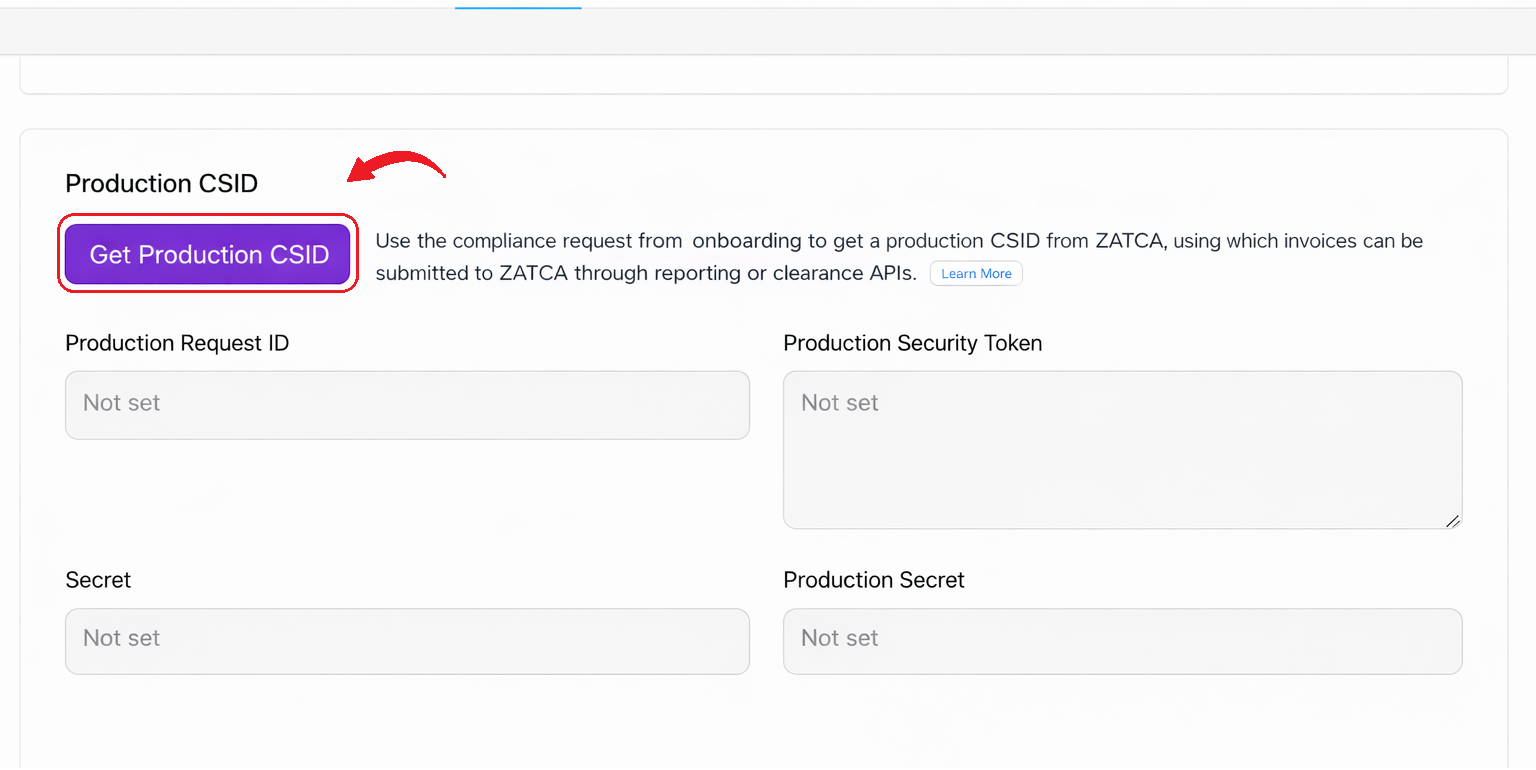
- Receive production credentials:
- Production Request ID
- Production Security Token
- Production Secret
- Enter these credentials in ZATCA Settings → Integration tab
- Save settings